Pocket Tabs
Letting people sort their Pockets by what the money is for, not just who owns it.
Pockets were sorted by owner. People think in goals.
In the Jago app, every Pocket lives on one page, and the only way to slice that page was by ownership: All, My Pockets, and Shared with me. That works with a handful of Pockets. It stops working when someone has a Main Pocket, a few savings goals, a Lock Pocket, Pockets shared with family and a GoBiz Pocket for their business, all in one grid.
Pocket Tabs lets people create their own tabs, like Business, Personal or My Investment, and decide which Pockets go in each one. A Pocket can sit in more than one tab, and taking it out of a tab never touches the money inside.
This first version covers the whole lifecycle: creating and managing tabs, moving Pockets between them, filling an empty tab, and the guardrails and guidance around all of it.
One long grid, sliced the wrong way
Pockets are how Jago customers split their money: daily spending, savings goals, locked deposits, shared Pockets and business Pockets for GoBiz merchants. The more someone uses Pockets, the longer that grid gets.
The existing tabs answered "who owns this Pocket?", but people usually look for a Pocket by what it's for: the business money, the travel fund, the investments. With only ownership tabs, they had to scroll and scan the whole grid every time.
Let people group Pockets the way they already think about their money, without ever putting the money itself at risk.
The second half of that mattered as much as the first. Every action in this feature had to read clearly as organising, never as transferring or deleting.
Six flows, one mental model
Tabs on the Pockets page
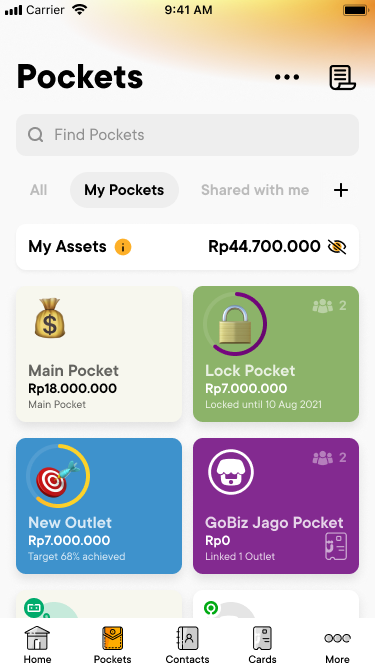
Mobile · on the gridCustom tabs sit right after the three built-in tabs, with a + at the end of the row to create a new one. The tab row scrolls sideways, so it keeps working as people add more tabs.
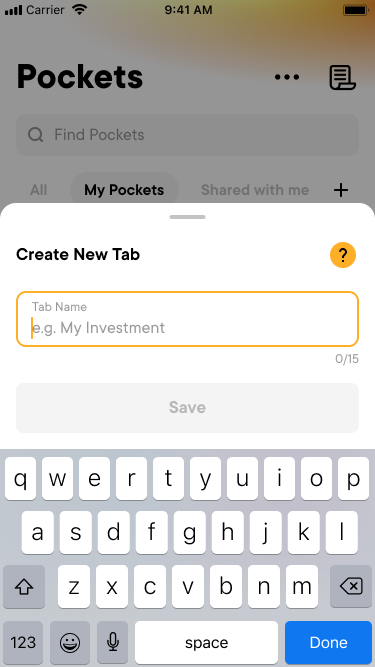
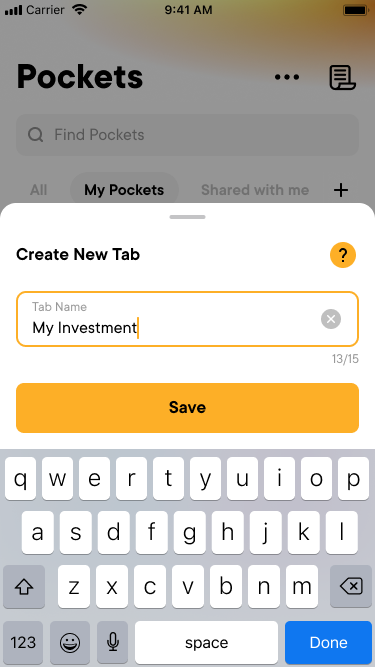
Tapping + opens a short bottom sheet with a single field. The name has a 15-character limit with a live counter, so it always fits in the tab row, and Save only turns on once there's a name. A toast confirms the new tab, and the page switches straight to it.
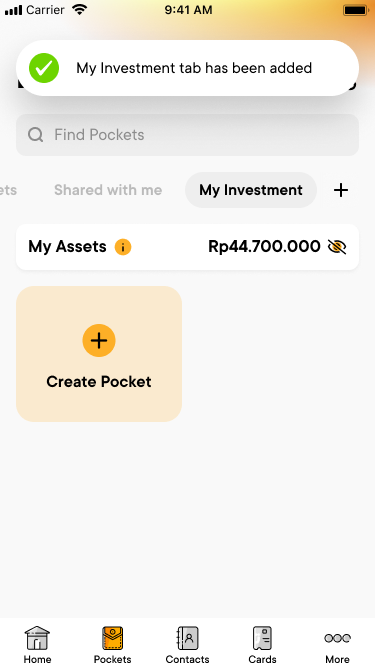
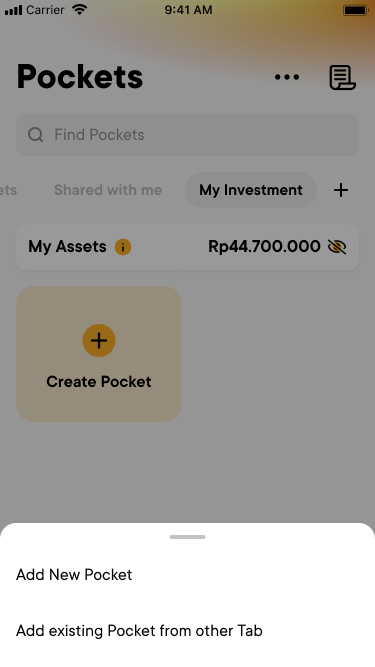
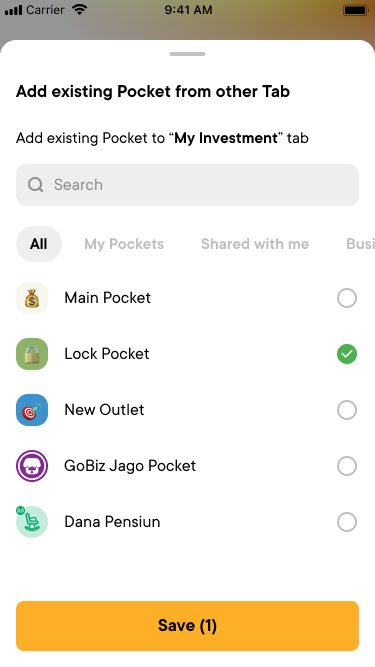
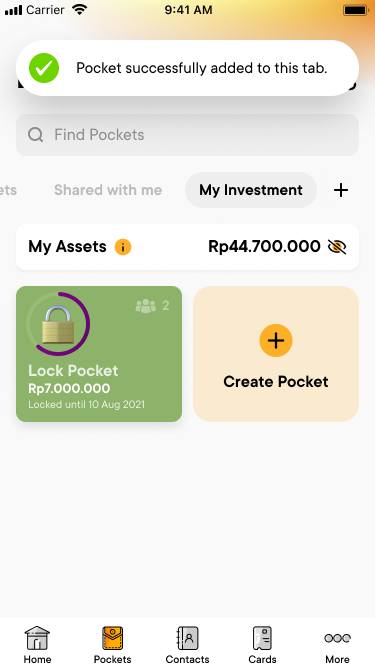
A new tab starts empty, so its Create Pocket card offers two paths: create a brand-new Pocket, or add existing Pockets from other tabs. The picker reuses the same tabs and search, lets people choose several Pockets at once, and the Save button counts how many are selected.
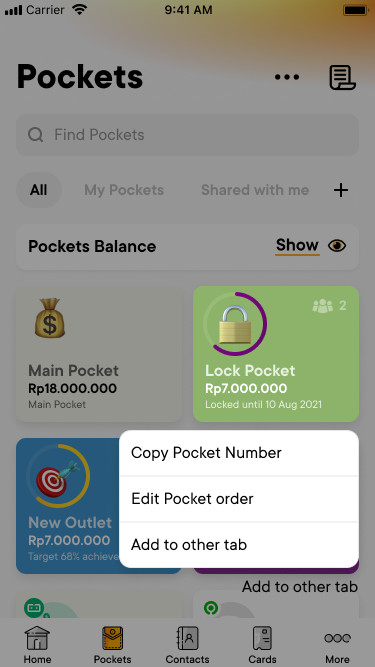
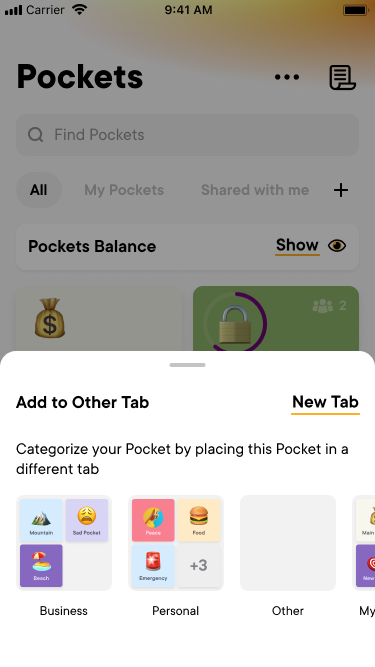
From any tab, tapping and holding a Pocket opens its menu. Add to other tab shows every custom tab as a small preview of the Pockets already inside it, so people recognise a tab by what's in it, not just its name. If the right tab doesn't exist yet, there's a New Tab shortcut in the same sheet.
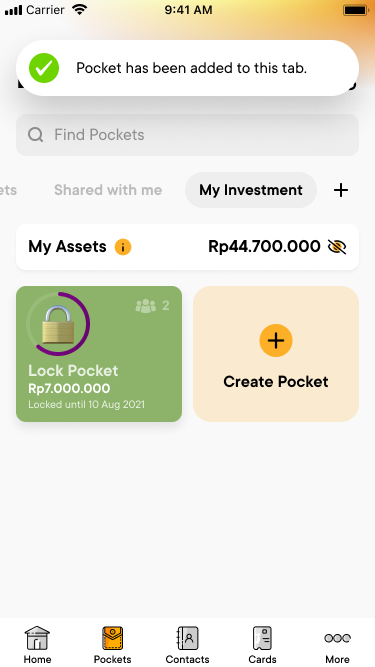
Inside a custom tab, the same long-press menu changes to fit the context: Move to other tab, and Remove from this tab in red. Removing only takes the Pocket off this tab. The Pocket and its balance stay exactly as they were, and the toast says so: the Pocket has been removed from this tab.
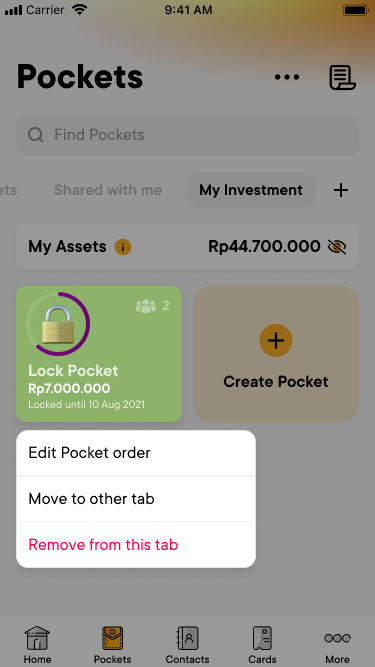
Organising Pockets happens in place, on the grid. Changing the tabs themselves gets its own screen, where edits are saved together.
Managing tabs
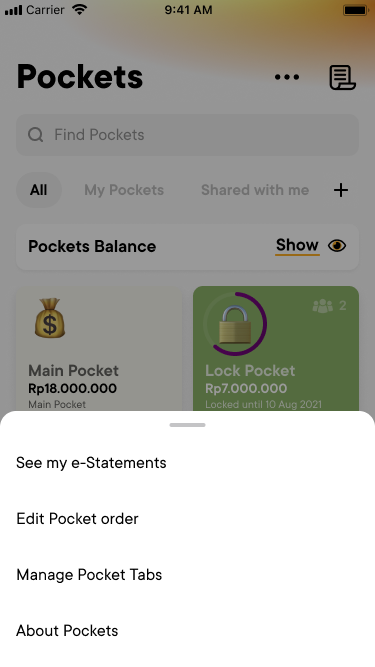
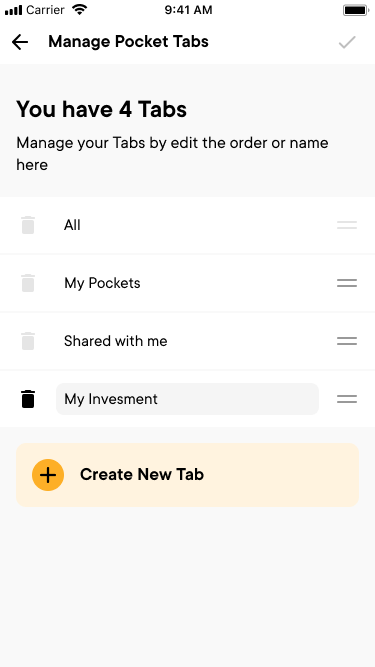
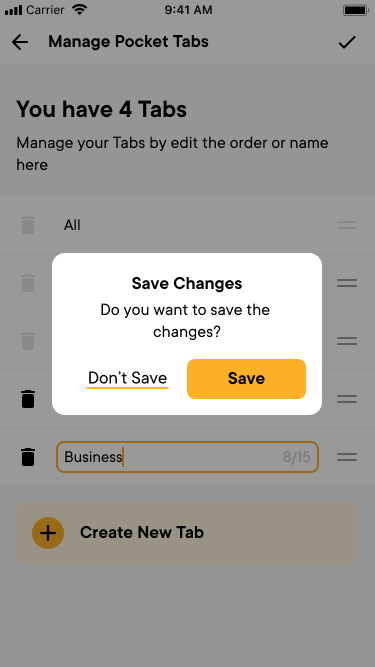
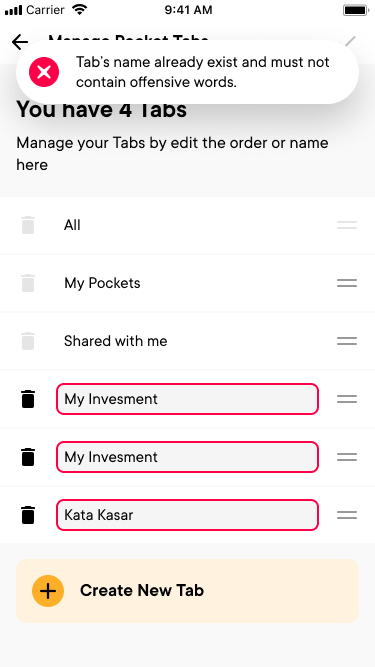
From the ··· menuManage Pocket Tabs lives in the page's ··· menu. Tabs can be renamed, reordered with drag handles and deleted, while the three built-in tabs stay locked. Changes are saved together with one tick, and leaving with unsaved changes asks first.
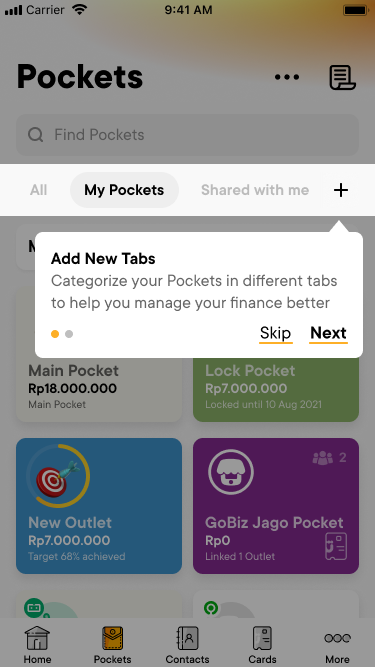
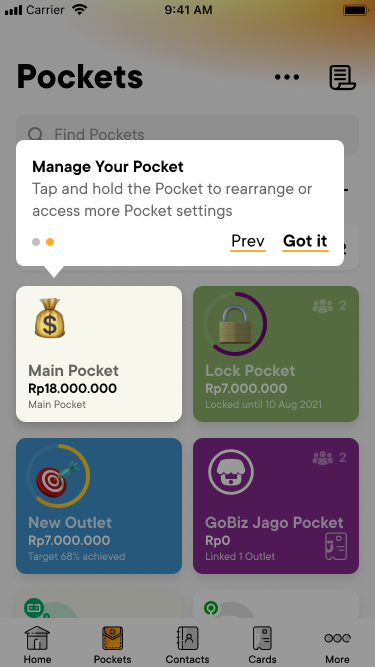
The first time someone opens Pockets after the update, a two-step tooltip points at the + (Add New Tabs) and then at a Pocket (tap and hold to rearrange or open more settings). It teaches the two things that aren't visible on the screen, and both steps can be skipped.
What kept it simple, and safe
- 1
Organising never looks like moving money
Every action in the feature names the tab: Add to other tab, Move to other tab, Remove from this tab. Remove is red because it changes something, but its toast makes clear that only the tab changed. Nobody should wonder whether their balance moved.
- 2
A Pocket can belong to more than one tab
Money doesn't fit neatly into one category. A business Pocket can also be part of an investment plan, so adding a Pocket to a tab doesn't take it out of another one.
- 3
Keep the grid a grid; put actions behind a long press
The Pockets page stays a clean view of balances. Organising actions live in a long-press menu that adapts to the tab you're in, and the first-time tooltip teaches that gesture once.
- 4
Show what's inside, not just a name
In the Add to Other Tab sheet, each tab is a preview of its Pockets. Picking the right destination becomes recognising, not remembering.
- 5
No dead ends
An empty tab offers both ways to fill it, and the Add to Other Tab sheet has a New Tab shortcut. People never have to back out and start again to finish what they came to do.
Rules for names, and for unsaved work
Tab names appear on the main Pockets page, so they need rules. Each problem gets a red outline on the field at fault, plus a toast that says what to fix.
- Empty nameA tab can't be saved without a name.
- Duplicate nameTwo tabs with the same name would be impossible to tell apart, so a name that's taken is rejected.
- Offensive wordsNames are checked before they can be saved.
- More than one problemErrors combine into a single message, so everything can be fixed in one pass.
- 15-character limitA live counter while typing keeps names short enough for the tab row.
- Unsaved changesLeaving Manage Pocket Tabs with edits asks whether to save them, with Save as the main action.
What I'd want to measure
These are the signals that would show whether tabs actually help people find and manage their Pockets:
- Adoption. Share of Pocket users who create at least one tab.
- Depth. Pockets per custom tab, and how many Pockets sit in more than one tab.
- Guidance. How many people finish the first-time tooltip versus skip it.
- Friction. How often naming errors appear, to tune the rules.
Small labels carry the trust
Most of this feature is ordinary list management: create, rename, reorder, delete. What made it a banking problem is that every one of those actions sits right next to people's money. The work that mattered most was in the words, making sure every label and toast said "tab", so organising never felt like moving funds.
As an MVP, it keeps tabs plain: a name and a set of Pockets. Once we see how people actually use them, richer ideas like tab icons or suggested groupings can earn their place.
Liked this one? Let's talk.
If you're working on something where this kind of thinking would help, I'd love to hear about it.